.webp?width=120&height=85&name=Relentless-Digital%20(1).webp)
▶ What is this Article?
This Article outlines the step-by-step process to end all follow-up communications and automations for the review Request Bot (Rechel) and a contact.
▶ Why do we use this?
To prevent redundant or irrelevant follow-up messages being sent to leads or clients who no longer require them, thereby improving customer experience and avoiding confusion.
✅ Triggering Ai to stop Communicating via Tag
▶ Instructions:
-
Open the contact profile within your CRM.
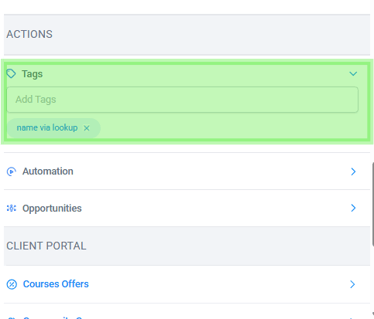
- Locate the Tag space below in the Contact Record.
-
Add the following tag to the contact:
Ai_off-
This tag is another automation trigger that will remove the contact from all active workflows.
-
📌 Note:
Make sure the tag spelling is exact, including underscores or dashes. Incorrect tag formatting will not activate the automation.
✅How to End All Texts via DND
(Do not Disturb) Please note this will stop communication for them until turned back on.
▶ Instructions:
-
Open the contact profile within your CRM.
- Locate the DND section of the Contact Record
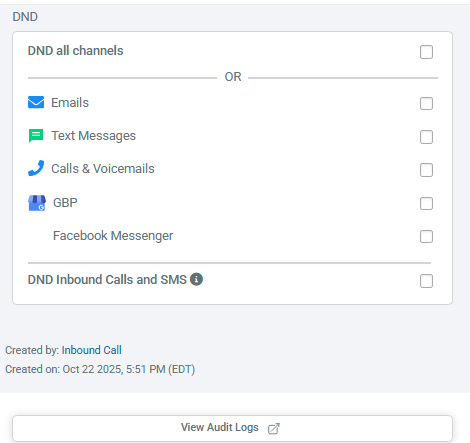
- Check any box that applies to what you wish to stop.
📌 Note:
If anyone replies "STOP" the system will automatically apply this setting in which case you will not be able to turn it back on. If it is greyed out, that is the reason.
FAQ’s
▶ Will ai_off stop all forms of contact, like manual emails or texts?
No. This only ends AI based workflows. You can still reach out to the contact manually.
▶ Can this be undone?
Yes. Simply remove the ai_off tag and reassign the contact to a new workflow manually.